
 Optical Fiber
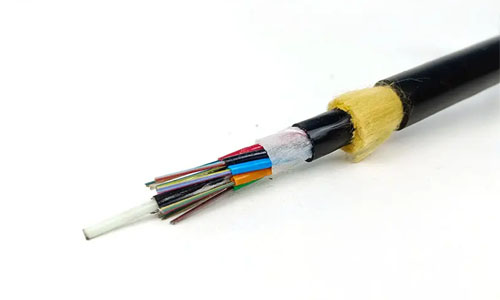 ADSS Fiber Optic Cable
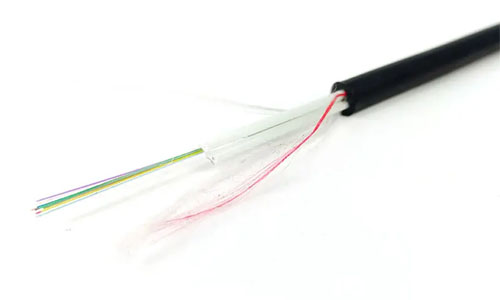 ASU Fiber Optic Cable
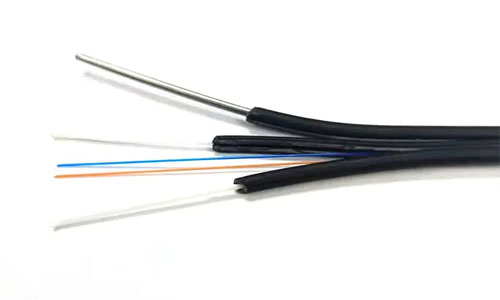 FTTH Fiber Optic Cable
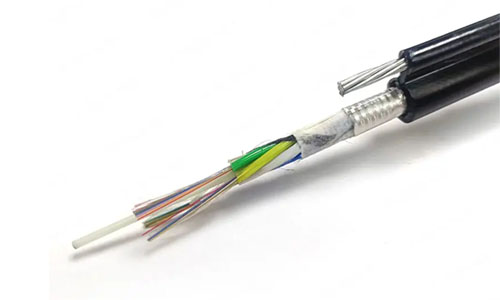 Figure 8 Fiber Optic Cable
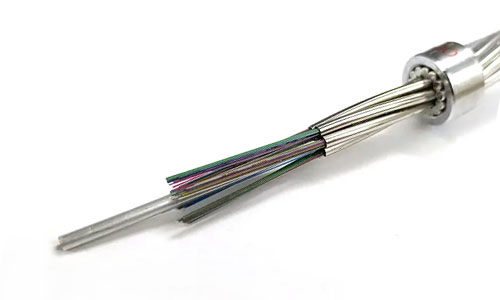 OPGW Fiber Optic Cable
 Coaxial Cable
 Ethernet Cable
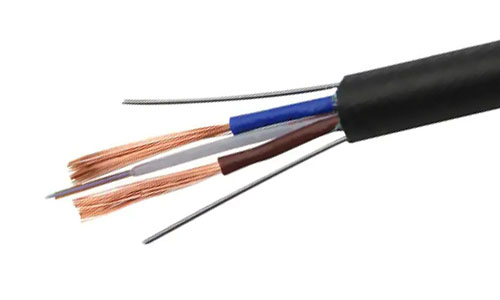 Photoelectric Composite Fiber Optic Cable
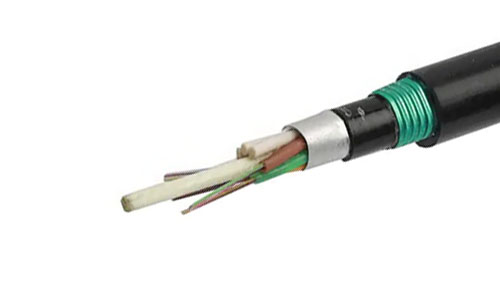 Underground & Pipeline Fiber Optic Cable
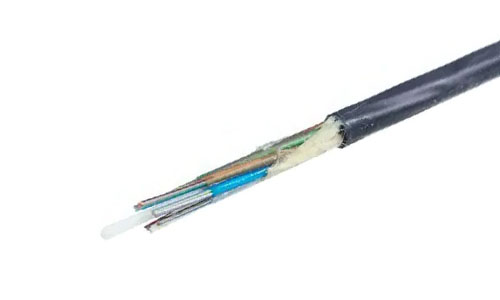 Air-Blown Micro Fiber Optic Cable
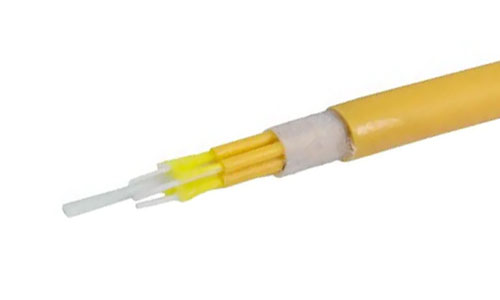 Indoor Fiber Optic Cable
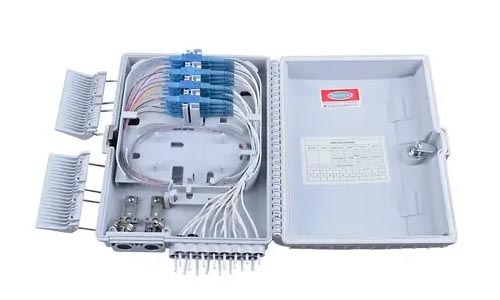 Fiber Optic Distribution Box
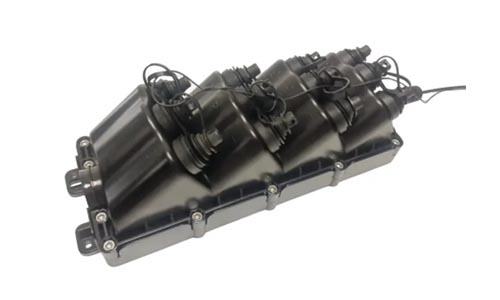 Multiport Service Termina Box
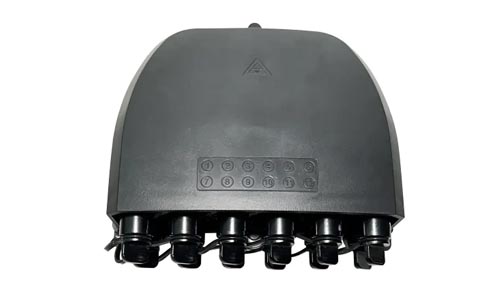 Fiber Optical Terminal Box
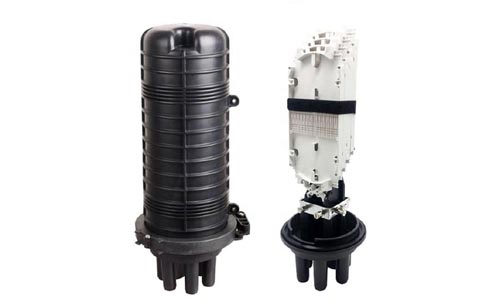 Fiber Optic Splice Closure
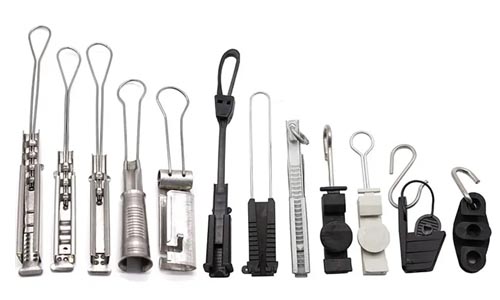 Fiber Optic Clamps
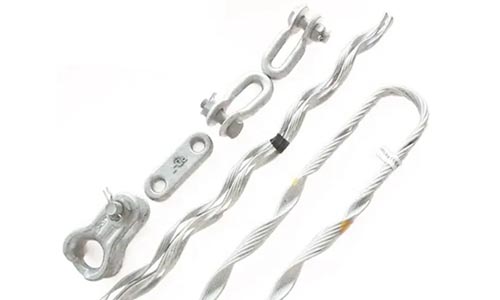 Fiber Optic Cable Fittings
 ADSS Fiber Cable
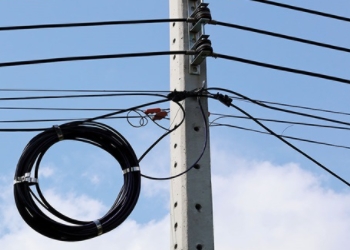 ASU Fiber Cable
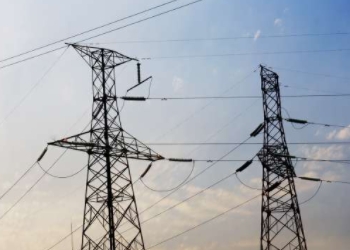 OPGW Fiber Cable
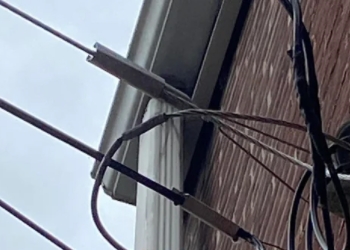 FTTH Fiber Cable
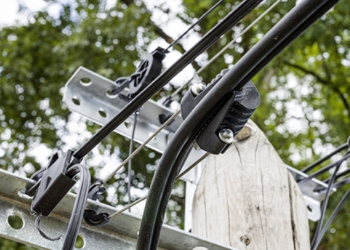 Figure 8 Fiber Cable
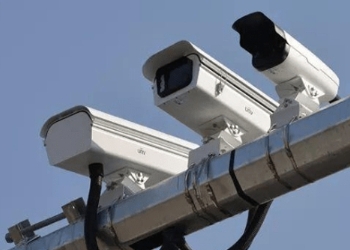 Photoelectric Composite Fiber Cable
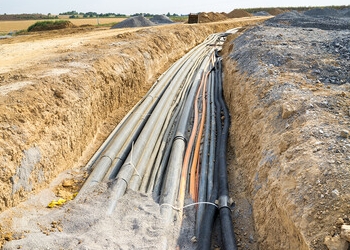 Underground & Pipeline Fiber Cable
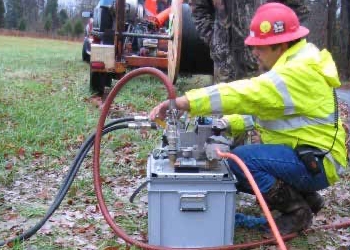 Air-Blown Micro Fiber Cable
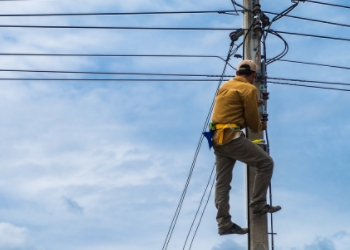 Aerial Fiber Cable
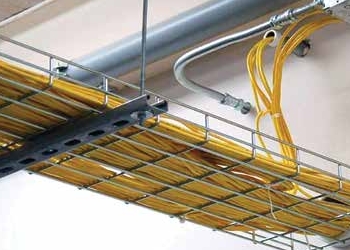 Indoor Fiber Cable
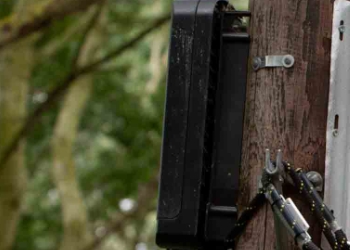 Fiber Optical Terminal Box
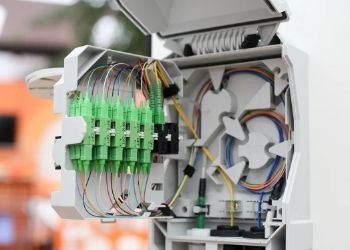 Fiber Optic Distribution Box
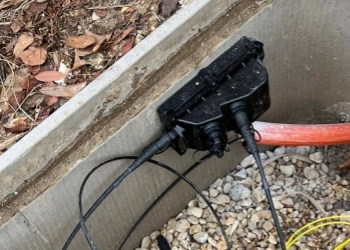 Multiport Service Termina Box
 Fiber Optic Clamps
 About Us
 Our Team
 History
 R&D Strength
 Production Base
 Warehouse & Logistics
 Quality
 FAQs
FAQsWhat is a DHCP Server and How Does it Manage IP Addresses?
Contact for Free Quotation & Sample, According to your needs, customize for you.
inquiry nowWhat is a DHCP Server and How Does it Manage IP Addresses?
-
DHCP servers streamline network management by taking over the automatic assignment of IP addresses and other configurations, minimizing manual labor and mistakes.
-
The DHCP dance goes like this—Discovery, Offer, Request and Acknowledgement, allowing devices to hop on the network and start communicating without a thought.
-
NESS DHCP Server, Client, Relay, Pool (including reliability) Learning core DHCP components like server, client, relay, and address pool are important for effective and reliable network operations.
-
DHCP is typically more extensible and scalable than static IP assignments, fitting well with dynamic or expanding networks. Locking down your DHCP server is key.
-
Powerful functionality such as reservations, exclusions, failover, and DNS integration enable more efficient, reliable, and manageable networks, particularly in more complex deployments.
-
Proactive care like routine monitoring, timely troubleshooting, and adherence to best practices ensures your DHCP environment remains secure, stable, and responsive to network demands.

DHCP server allocates IP addresses and other network configuration parameters to devices on a network so they can communicate with other IP networks. It saves user time since it doles out these settings automatically, so individuals do not have to configure each device manually. A DHCP server works well in homes, schools and big offices because it keeps things simple and reduces errors. When a new phone or computer enters a network, the DHCP server chooses an IP address for it and distributes other information such as the gateway and DNS. A lot of routers have DHCP baked in, which makes setting up a network quick. In the following section, discover how DHCP functions and its significance.
What is a DHCP Server?
A DHCP server simplifies the process of configuring devices on any network by automating IP address allocation and other important information such as subnet masks, gateways, and DNS server addresses. This protocol, known as Dynamic Host Configuration Protocol (DHCP), monitors which IP addresses are assigned and which are available so that DHCP clients can connect to the network automatically. Many networks utilize a router or dedicated server acting as their DHCP server, which plays a crucial role in ensuring each device receives the necessary data for effective communication and access to network resources, minimizing manual effort. For worldwide offices or hectic families, dynamic DHCP setup signifies less aggravation and fewer errors.
1. The Discovery
When a device connects to a network, it shouts for assistance by producing a DHCP Discover message. It’s the initial way a phone, laptop or any gadget informs the network that it requires an address.
The Discover message is broadcast, so it goes to all the DHCP servers out there listening. This is key, because without this first shout, the device remains lost, unable to communicate to others. In larger networks where devices reside on different subnets, special agents called relay agents intercept the Discover and forward it onto the appropriate server – ensuring no machine is left stranded.
2. The Offer
A DHCP server responds by issuing a DHCP Offer in return. This message specifies the address the server can assign, for how long the device can use it, and other parameters like the default gateway. Servers can make multiple offers if there are options, so a device may receive several to choose from.
Devices then check out the options. If there’s more than one offer, they balance them and select the most suitable one prior to proceeding.
3. The Request
The device chooses an offer and transmits a DHCP Request. This indicates to the server ‘I’ll take that address’. Occasionally, the device will use this same message to request an extension on an address it’s already occupying.
Request goes to all servers so everyone knows which offer was accepted. The selected server prepares to commit the information and update its database.
4. The Acknowledgment
The server then transmits a DHCP Acknowledgment to accept the deal. This message contains all the configuration information the device requires.
Without this nod from the server, the device can’t use the address, and it can’t join the network. The acknowledgment is the final green light.
Core DHCP Components
A functioning DHCP arrangement, including the dynamic DHCP setup, depends on a few core components that maintain network devices connected and managed. Understanding how these DHCP services operate in concert simplifies managing any network, anywhere in the world.
The Server
The DHCP server plays a crucial role in managing IP address allocation within the network. It maintains a database of available IP addresses, monitoring their allocation status and lease duration, known as the IP address pool. When a device connects to the network, it sends a DHCPDISCOVER packet, prompting the server to select an available dynamic IP address. The server then responds with a DHCPOFFER, which includes essential settings like the subnet mask and DNS servers. Each granted address is recorded with DHCP leases, and the server tracks the lease time, which can vary based on network congestion. Larger networks often necessitate robust DHCP services with enhanced memory and processing capabilities to ensure efficient operation.
The Client
A DHCP client, such as a laptop in a coffee shop or a smart television at home, is anything that requires an IP address. The client initiates the process by broadcasting a DHCPDISCOVER and waits for a response. After choosing a server, it sends a DHCPREQUEST to request an address, receiving its configuration via a DHCPACK. The client maintains a lease timer for its dhcp lease, and when the timer is half done, it requests to renew with another DHCPREQUEST. If the network changes, the client can send a DHCPDECLINE or ask for new settings, ensuring proper ip address allocation. Devices utilize their MAC address as a client ID, allowing the server to identify each device.
The Relay
Relay agents play a crucial role in networks that are divided into multiple subnets by facilitating dynamic DHCP setup. Often, clients and servers are not located on the same subnet, so the relay intercepts client messages and forwards them to the appropriate DHCP server, typically by inserting its own address into the packet. Without these relay agents, each subnet would necessitate its own DHCP server, complicating network administration. This integration enables large offices or campuses to utilize a single DHCP server for all their segments.
The Pool
The IP pool is the stack of addresses the dynamic DHCP server may offer, molded by the subnet mask that separates the network into chunks. Watching the pool is essential—if it depletes, new DHCP clients cannot connect. Tracking DHCP leases keeps it all going seamlessly, even as new devices come online.
DHCP Versus Static IP
Both DHCP and static IP setups are crucial to contemporary networking. It typically depends on the types of devices that reside on the network, how dynamic that network is, and how much effort you want to expend to keep it running smoothly. There’s not a one-size answers all. They both have their strengths and their weak spots, and each is better suited to some requirements than others.
| Feature | DHCP | Static IP |
|---|---|---|
| Setup | Automatic, fast, less error-prone | Manual, time-consuming, higher chance for mistakes |
| Management | Scales well, easy to change | Harder to update, changes need hands-on work |
| Use Cases | Laptops, phones, tablets, guest devices | Servers, routers, printers, firewalls, legacy gear |
| Pros | Saves time, easy for large or changing networks | Stable, needed for remote access, avoids some conflicts |
| Cons | Needs good setup, two servers can clash, failures can lock users out | Hard to manage at scale, easy to make mistakes, doesn’t adapt well |
DHCP excels in bustling office environments or schools where individuals are constantly arriving and leaving, and devices are frequently swapped out. With a dynamic DHCP setup, every device receives an IP address without manual configuration. This feature is particularly useful when you have hundreds or thousands of devices such as laptops, tablets, or phones. If they BYOD, it just works! This setup reduces the time spent repairing mix-ups and minimizes the risk of two devices competing for the same address.
Static IP, conversely, is reasonable for stuff that has to be located in the same damn spot every damn day. Servers, printers, firewalls, or even an old beast chugging away at core business tasks—usually, these require a static address. That way, remote access is easy and there are less surprises to devices that always need to be online. Configuring these takes longer, and errors can mess things up, but for key systems, the tradeoff is worth it.
On dynamic networks, static IPs can confuse users if devices wander or if someone connects a home router with its own static configuration. This can lead to address clashes or dropped connections. A well-configured DHCP service sidesteps these issues, but it still requires careful administration. Having two DHCP servers can confuse devices if they are out of sync, making effective DHCP server integration essential.
Securing Your DHCP Server
A DHCP server leases dynamic IP addresses and configurations to devices, operating quietly in the background. If left exposed or unprotected, the DHCP server role can become a soft spot in a network. Securing a DHCP service prevents intruders from seizing access or wreaking havoc with IP address allocation. Threats range from rogue servers to address-eating attacks. By monitoring the server, paying extra attention to logs, and implementing good practices, you’ll ensure the network remains stable and secure.
-
Always configure two DHCP servers for backup and load sharing.
-
Lock down network ports to stop unauthorized DHCP traffic.
-
Utilize AD and group policy for user audits and secure logins
-
Authorize DHCP servers in AD to keep unknown ones from joining.
-
Watch for odd DHCP traffic and check logs often.
-
Use longer lease times to ease the server and to prevent network hiccups.
-
Leverage Windows PowerShell, DHCP console, or Windows Admin Center for management and oversight.
-
Double-check scope settings to avoid overlapping IP addresses.
-
Regularly update server software and patch known holes.
-
Audit server actions and set alerts for strange behavior.
Rogue Servers
Rogue DHCP servers, which are configured without permission, can slip onto a network and disrupt the dynamic DHCP setup by doled out incorrect network configurations or stealing information. These unauthorized DHCP services often lead devices to receive the wrong IP address, breaking connections or, worse, opening doors for attacks. The danger is genuine—IP collisions, information spills, and bogging down the network can ensue. Catching rogue servers early is crucial, and network tools can scan for these threats while port security can help lockdown locations where new devices may attempt to connect.
Starvation Attacks
A DHCP starvation attack floods the DHCP server role with fake requests, overwhelming it with so many calls that no available IP addresses are left for legitimate users. This situation can bring a network to its knees. Imposing a limit on how many IPs a single device can obtain is beneficial. Shrinking your pool of addresses, imposing lease limits, and leveraging tools to identify traffic bursts all help. Monitoring the DHCP service for usage spikes or strange patterns can alert admins before they get a handful.
Snooping
DHCP snooping is a security feature integrated into most switches that enhances DHCP services by inspecting every DHCP message and only accepting those originating from secure ports. By designating which ports can communicate with the DHCP server role, snooping eliminates counterfeit devices. It effectively blocks rogue DHCP servers from distributing harmful addresses, thus maintaining network integrity. When attached to a network, snooping not only prevents attacks but also logs traces to help admins backtrack problems.
Advanced DHCP Configurations
Advanced DHCP configurations, including dynamic DHCP setup, allow network administrators to do more than just assign IP addresses. These features help keep networks stable, fast, and prepared for anything. With additional DHCP options, administrators can optimize device connectivity, implement security measures, and effortlessly manage large, intricate networks. It’s knowing these advanced tools that makes the difference, especially when network uptime and reliability count the most.
Reservations
DHCP reservations bind a device’s MAC address to a static IP, so whenever it connects it receives the same address. This is crucial for servers, printers, or other devices that require a consistent location on the network.
By leveraging reservations for critical devices, you eliminate guesswork and keep things humming. For instance, if a network printer is always at the same address, users can find it every time. For admins, it translates to less troubleshooting.
Setting up a reservation is simple: just add the device’s MAC address and pick the IP you want it to have in the DHCP server settings. Most network tools make this easy, and it’s a minor thing that saves major headaches down the road.
Exclusions
Exclusions are simply blocks of IP addresses that DHCP hops around. They prevent the server from distributing addresses that are used elsewhere, such as ones manually set on servers or routers.
If you already assigned a device a static IP, you don’t want DHCP handing out that same spot to someone else. That’s where exclusions rock. They prevent networks from two devices dueling over the same address.
How to set exclusions – you just list them in the DHCP server settings as IPs or ranges. This is convenient in case you’re combining static IPs and DHCP on the same network. Say your servers take from 192.168.1.10 – .20, you simply exclude that block.
Failover
DHCP failover is when two servers collaborate to continue distributing addresses, even if one of them fails. This is vital for mission critical networks.
| Failover Type | Description | Benefit |
|---|---|---|
| Load Balance | Both servers share DHCP requests | Keeps service fast |
| Hot Standby | One server acts as backup if main fails | Always available |
Failover signifies your network continues operating, even during upgrades or downtime. Test your setup. Ensure that the two servers replicate and fail over as expected.
DNS Integration
DHCP and DNS can be configured to update device names and addresses dynamically. This keeps it all in sync for users and admins.
DHCP can update to DNS whenever it distributes an address, so you always know which device is where.
-
Simplifies management by keeping DNS records current.
-
Cuts down on manual updates, saving time and mistakes.
-
Helps with security since you always know what’s connected.
-
Makes troubleshooting quicker since device names match their addresses.
Accurate DNS means fewer problems and smoother network runs.
Troubleshooting Common Issues
A DHCP server can streamline things; however, you may hit snags that bog the network or prevent devices from coming online. Most problems arise when something interferes with the DHCP service, be it a configuration issue, a wiring fault, or network routing. For most of us, the first sign of trouble is when a device won’t grab an IP address or when two devices battle for the same one. These are pains, but they’re resolvable with a little consistent approach and some patience.
First, verify that the client and server can indeed see one another. It could be bad cables, unplugged switches, or shut-off devices. No amount of tweaking will save you if the wiring’s off. For instance, if a laptop won’t connect, plug it into a different port or use a known working cable. Once you know the physical link is good, check if the client and server are on the same subnet. Clients on another subnet require a DHCP relay agent configured on the router, or they don’t receive their IP address. Routers don’t forward the broadcasts that DHCP uses by default, so if you omit this step, some devices will be excluded.
Address conflicts are another drag. If two devices use the same IP, neither will function properly. This can occur if someone manually sets a static IP that intersects with the pool or if the DHCP server role gets out of sync. Check the DHCP logs for clues — these records are a goldmine when you’re trying to see what happened and when. They’ll tell you if a request came in, whether it was answered, and if there were any errors, so it’s smart to check on them regularly.
Understanding the dhcp states—Initialing, Requesting, Bound, Renewing, Rebinding—can assist you in identifying where they fall apart. If they hang at “Requesting,” maybe you’ve got a network block or the server is too damn slow. PXE boot can trip up DHCP as well, particularly in offices where machines attempt to boot from the network and inundate the server with superfluous requests.
For easier management, divide subnets with sub-interfaces to ensure each device receives a proper address. Follow the best practice, maintain your logs, double check your settings and, if in doubt, always test with a fresh device.
Conclusion
These little gems are what keep things running smooth on any network. No need to configure every device manually—DHCP does it quick and hassle-free. From initial handshake to smoothing out bumps in the road, it keeps everyone connected. Robust security measures and intelligent optimizations drive DHCP even more. Imagine a school with hundreds of laptops or a hospital with new gear every week—DHCP keeps the madness under control. Anyone can give their network a shot in the arm by learning these fundamentals and tricks. Wish to maintain your community rapid and secure? Discover, experiment and keep it interesting. Networks evolve quickly. Be prepared, and your configuration will keep up, no problem.
Frequently Asked Questions
What does a DHCP server do?
A dynamic DHCP setup allows a DHCP server to automatically assign IP addresses, aiding client devices to connect without manual configuration.
How is DHCP different from static IP assignment?
Dynamic DHCP automates IP address allocation, making it quicker and simpler for large networks while minimizing human mistakes compared to static IP configuration.
What are the main components of DHCP?
The key players in DHCP services are the dynamic DHCP server, DHCP clients, and DHCP leases. The DHCP server manages IP address allocation, while the clients request dynamic IP addresses, and the leases define the duration of use.
Why is DHCP security important?
Securing DHCP services stops rogue devices from connecting to your network and protects against attacks such as IP spoofing, ensuring stable IP address assignments and a secure network.
Can DHCP work with both IPv4 and IPv6?
Yes, there’s DHCP for both IPv4 (DHCPv4) and IPv6 (DHCPv6), which automates the ip address allocation process, making setting up devices on either of the networks a breeze.
How can I troubleshoot common DHCP issues?
Verify network cables, ensure the DHCP server is running correctly, and that DHCP options are set properly. Rebooting the server or client device usually resolves most issues.
What are advanced DHCP configurations?
Advanced configurations like setting reservations for specific devices, configuring multiple scopes, and utilizing a DHCP relay agent for multi-subnet networks are essential.