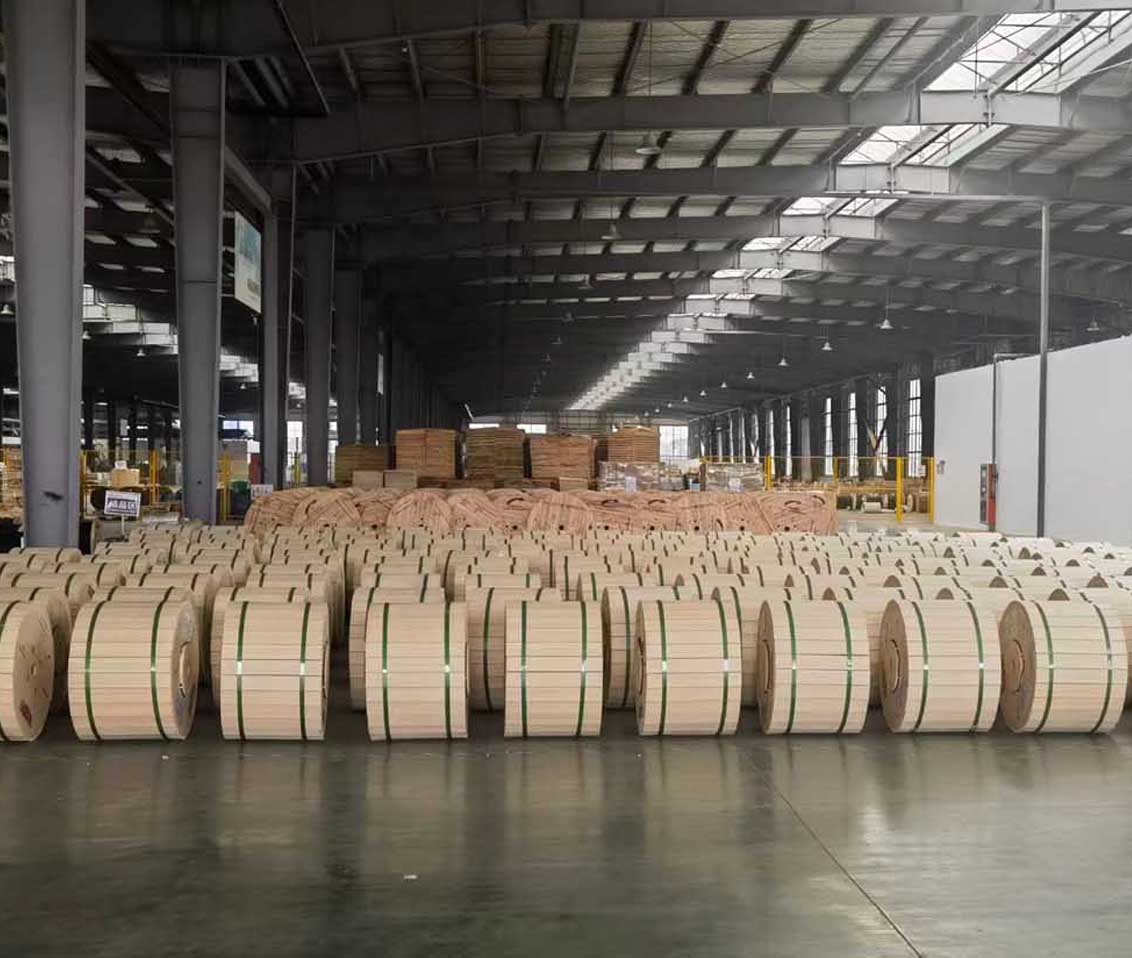
 Optical Fiber
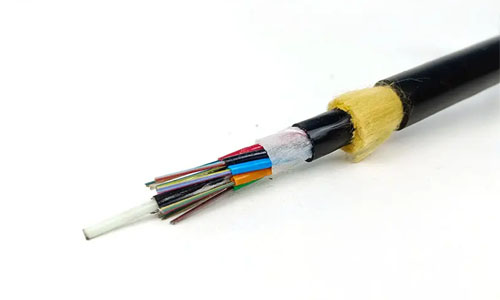 ADSS Fiber Optic Cable
 ASU Fiber Optic Cable
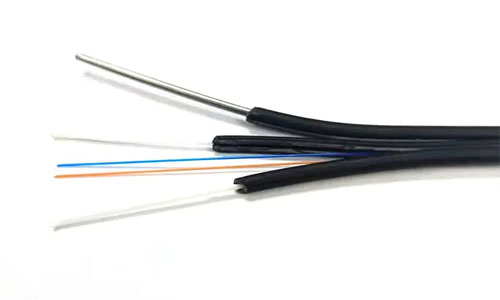 FTTH Fiber Optic Cable
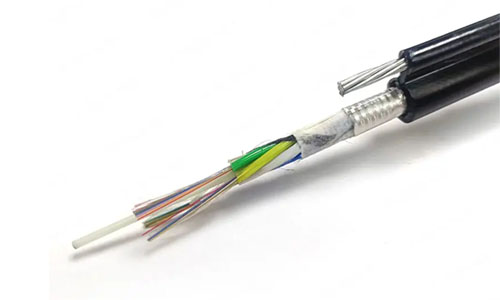 Figure 8 Fiber Optic Cable
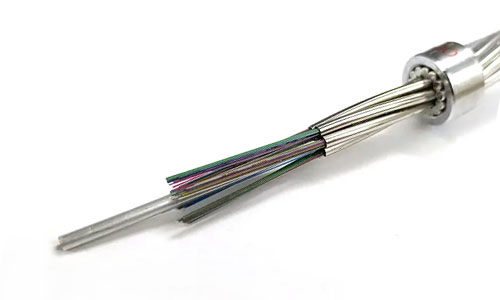 OPGW Fiber Optic Cable
 Coaxial Cable
 Ethernet Cable
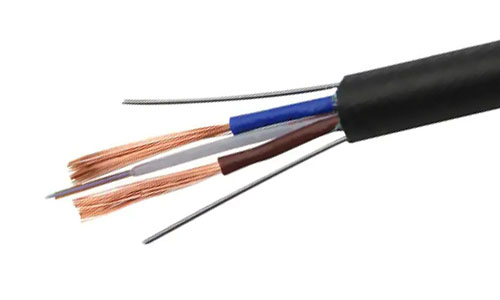 Photoelectric Composite Fiber Optic Cable
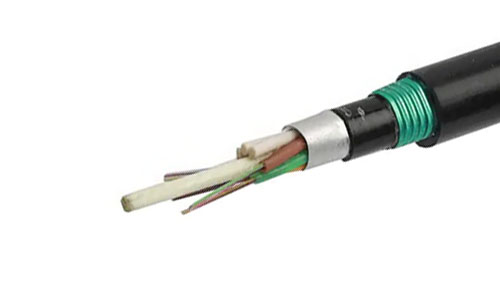 Underground & Pipeline Fiber Optic Cable
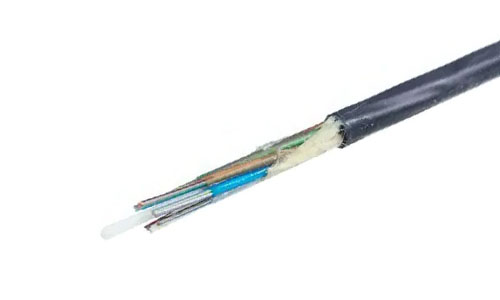 Air-Blown Micro Fiber Optic Cable
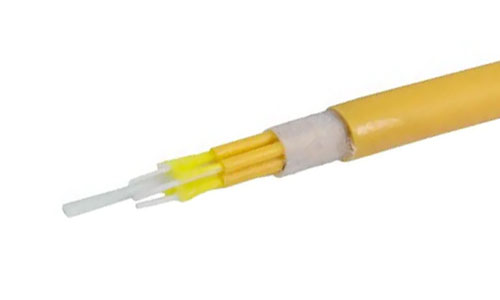 Indoor Fiber Optic Cable
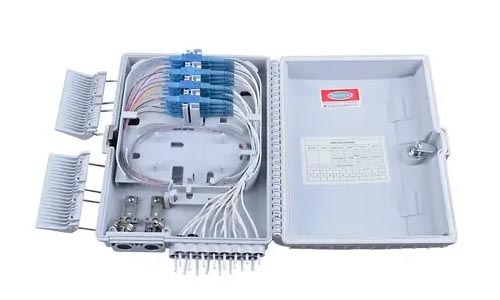 Fiber Optic Distribution Box
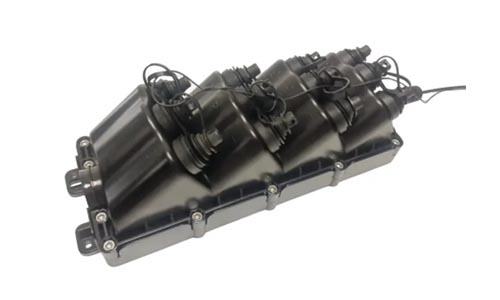 Multiport Service Termina Box
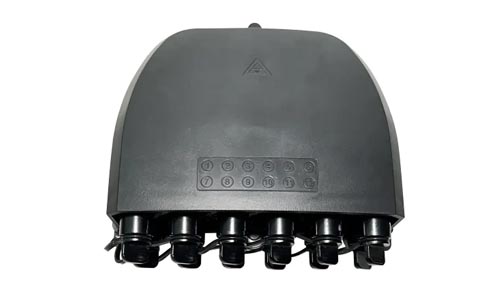 Fiber Optical Terminal Box
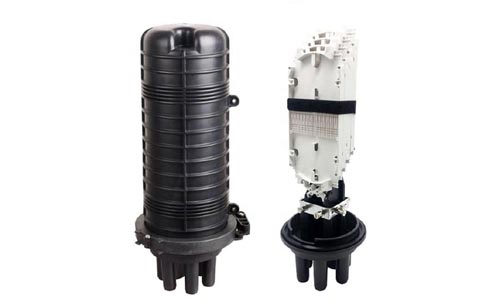 Fiber Optic Splice Closure
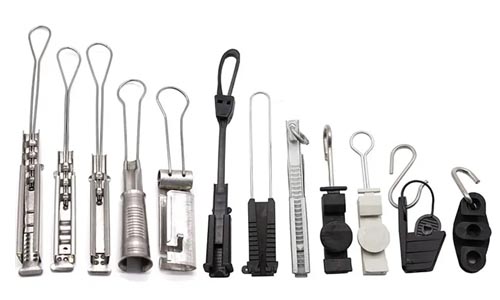 Fiber Optic Clamps
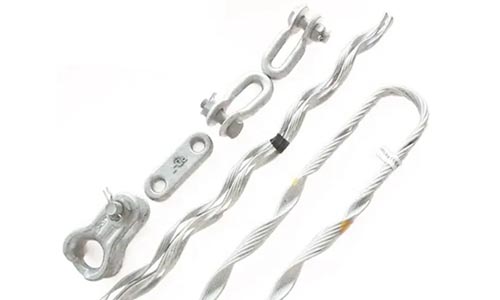 Fiber Optic Cable Fittings
 ADSS Fiber Cable
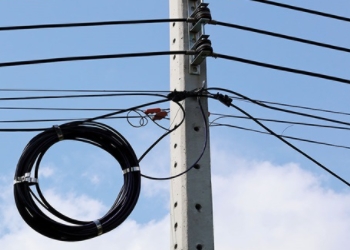 ASU Fiber Cable
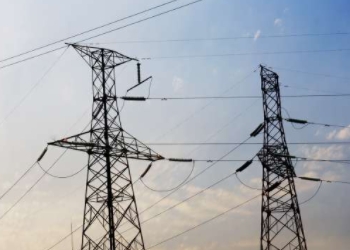 OPGW Fiber Cable
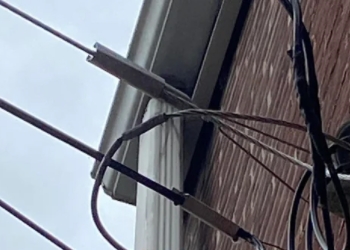 FTTH Fiber Cable
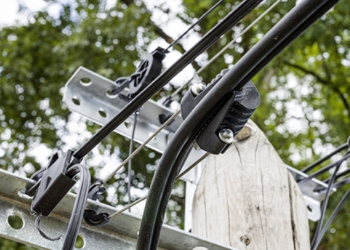 Figure 8 Fiber Cable
 Photoelectric Composite Fiber Cable
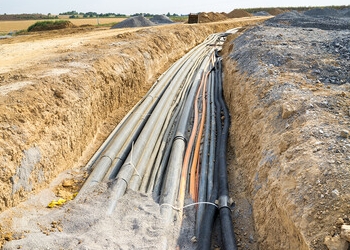 Underground & Pipeline Fiber Cable
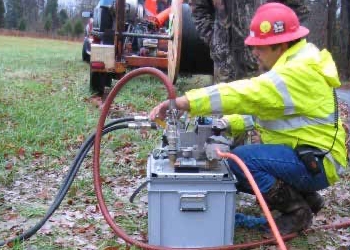 Air-Blown Micro Fiber Cable
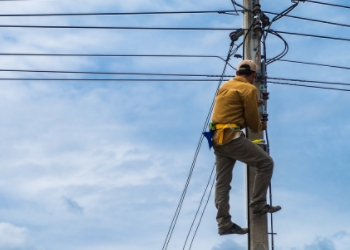 Aerial Fiber Cable
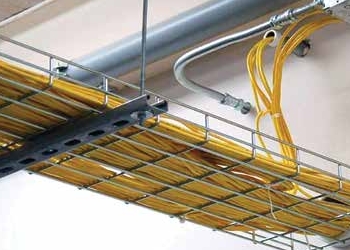 Indoor Fiber Cable
 Fiber Optical Terminal Box
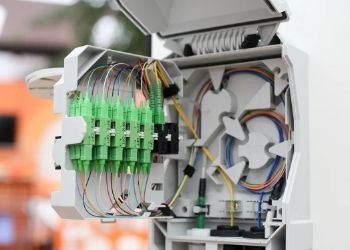 Fiber Optic Distribution Box
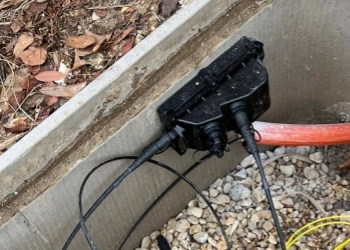 Multiport Service Termina Box
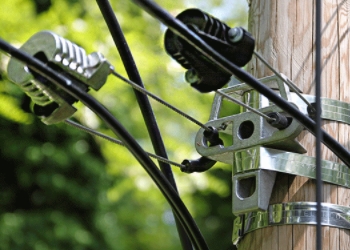 Fiber Optic Clamps
 About Us
 Our Team
 History
 R&D Strength
 Production Base
 Warehouse & Logistics
 Quality
 FAQs
FAQsHow to Extend Your Wi-Fi Range: 10 Effective Tips for Home and Office
Contact for Free Quotation & Sample, According to your needs, customize for you.
inquiry nowHow to Extend Your Wi-Fi Range: 10 Effective Tips for Home and Office
Find potential barriers that might be interfering with your Wi-Fi signal. Take down heavy walls, metal objects, and electronics to increase your range at home or in the workplace.
Replace and maintain router infrastructure Replace old or broken routers with current technology, and regularly update router firmware to take advantage of the latest performance and security updates.
Try these easy tips like moving your router, unplugging devices you’re not using, and restarting routinely to help get that signal stronger—fast.
For larger coverage areas and more flexibility, you can evaluate hardware Wi-Fi extenders or Wi-Fi mesh networks. Powerline adapters are a wonderful alternative for larger areas too!
Tip #2 Optimize your router settings & pick the right Wi-Fi band Properly manage data-heavy devices, and ensure strong and stable connectivity for all!
Test your Wi-fi signal strength often. Pulling performance data helps monitor ongoing improvements and keep coverage strong in each location.
Put your tech to work, with Wi-Fi extenders or mesh routers, or just relocate your existing primary router to the most advantageous location! Most households and businessplaces have dead zones or reduced speeds in areas of their home or office that are away from the router. Thick walls, metal furniture, and other electronics can all hinder signals.
Sometimes, even easy moves, like raising your router off the floor or decluttering around it, can do the trick. Mesh systems provide excellent coverage, even in large areas. Others find success with powerline adapters that send signals through the same wires powering your devices.
Understanding where your signal is failing is half the battle. It’s surprising how much difference upgrading to a current router can improve your experience. The following sections guide you through simple steps and solutions to help maximize your Wi-Fi.

Why Your Wi-Fi Range Suffers?
Wi-Fi issues arise in residential and commercial spaces for a variety of factors. The area around you may be stunting your connection. How these rooms are constructed and the materials you interact with on a daily basis matter, too.
As many people have discovered, one router simply isn’t enough to blanket a sprawling home or active workplace. Let’s demystify why your signals are dropping and what could be causing the interference.
Common Signal Blockers at Home
Knowing which materials block Wi-Fi most effectively is crucial. Things made of glass, metal, and stone are particularly effective at stopping your signal. Even heavy wood or concrete walls reduce your range considerably.
Even common household items can create obstacles. Here’s a quick list:
-
Microwaves
-
Cordless phones
-
Mirrors
-
TVs
Bulky furniture, such as large bookshelves or cabinets, can impede signals as well. The general rule of thumb is that the farther you are from your router, the weaker your connection becomes. This is especially important if you have a router that’s pinned down in a remote corner or behind objects.
Office Layout Challenges
In offices, cubicles and other partitions cut through otherwise open space, meaning signals have a hard time reaching each desk. In dense open spaces with many devices, such as an office floor, additional coverage may be necessary.
For better router placement, try:
-
Keeping routers off the floor
-
Placing them near the center
-
Avoiding metal shelves
-
Ensuring there are no barriers to access for the majority of workstations.
The signal should be even for everyone—not just the people nearest the router—because that is good design.
Everyday Electronic Interference
Bluetooth speakers, baby monitors, and even wireless cameras can all interfere with your Wi-Fi. Watch out for:
-
Smart TVs
-
Wireless printers
-
Game consoles
-
Remote controls
These are often forgotten on top of a router or nearby.
Is Your Router Outdated?
Older routers can’t handle today’s speeds or multiple devices. Make sure your router isn’t too old and supports current Wi-Fi (at least Wi-Fi 5 or 6).
Newer routers often have:
-
Dual-band (2.4GHz and 5GHz)
-
Stronger antennas
-
Better support for more devices
A new router can help you get fast, reliable Wi-Fi to all your family’s devices.
Simple Fixes for Better Wi-Fi
A better Wi-Fi connection improves your quality of life—for professional environments and beyond. Repairs some are really working on. Before you take other, more complicated measures, quick fixes can do the trick to address the most typical Wi-Fi problems!
Just a few simple fixes can deliver meaningful improvements in speed and connectivity.
Quick Router Repositioning Tips
Begin by determining your router’s optimal location. Place it in the center of your home to maximize its reach so that its signal can reach every room. Place it out of reach, such as on a high shelf, to protect it from losing broadcast integrity.
Don’t put them in corners or next to very thick walls—these absorb the signal and slow everything down. Reposition your router. Go to several new router locations and test your device’s signal strength after every move.
Supplementing the router’s existing antenna with an external antenna is an easy way to increase signal strength. This improvement makes it go even farther, fantastic for big houses or workplaces!
Reboot Your Router Regularly
Routers require regular breaks, just like we do. Setting your router to reboot weekly will clear out the cobwebs and reset your connection to help everything run more efficiently.
Look for reduced dropouts or quicker load times after each reboot. This is one of the simplest steps that people overlook, and it’s amazing how many weird slowdowns this alone can fix.
Look out for signs such as videos buffering, websites failing to load, or constant disconnections—these indicate it’s time to reboot.
-
Slow speeds
-
Frequent disconnects
-
Can’t find your Wi-Fi network
-
Devices won’t stay connected
Disconnect Unused Devices
The more devices that are in use, the more traffic there is, slowing everything down for everyone. Scan your network for devices like old phones, tablets, or other smart devices that aren’t being used by anyone.
Taking them out of the equation opens up a lot of bandwidth. Encourage others to disconnect devices when not in use. Regularly review the devices connected to your network.
-
Limit guest devices
-
Use unique names for each device
-
Check for unknown users
-
Change your Wi-Fi password often
It’s easy to avoid interference by changing Wi-Fi channels. If you have rooms that are difficult to reach, get some powerline adapters and look into mesh networks if you have large or challenging areas!
Making the move to Wi-Fi 6 and ensuring your router is located away from kitchen appliances or dense walls makes a difference.
Key Ways to Extend Wi-Fi
Having a stronger Wi-Fi signal at home or in the office is a great little win in these times! When you depend on a stable internet connection for work or day-to-day life, that makes all the difference. Just about everyone experiences the frustration of slow Wi-Fi or dead zones.
A little knowledge and the proper resources go a long way! Here are the top methods to help you extend your Wi-Fi. We’ll make sure your signal is consistently strong, so people keep coming back!
1. Find Your Router's Sweet Spot
Where you place your router can determine the quality of your entire Wi-Fi experience. Conduct a few speed tests in various rooms and locations before choosing a location. One of the best solutions is a central, open location.
Factors to consider:
-
Distance to main rooms or workspaces
-
Height (higher shelves often help)
-
Away from thick walls or metal objects
-
Far from devices that give off signals (like microwaves)
Relocate your router until you find a satisfactory location and pay attention to your device’s response. Even small moves like relocating a router can have big impacts.
2. Fine-Tune Router Settings
Delve into your router’s settings page and experiment with different channel frequencies. Your neighbors may slow your Wi-Fi down by clogging up the channels, but switching them can help improve performance.
The 5 GHz band provides higher speeds, but 2.4 GHz offers better range. Try these settings for better Wi-Fi:
-
Set channel to “Automatic” or test channels manually
-
Enable both frequency bands (2.4 GHz and 5 GHz)
-
Reduce transmit power if you have a small area
-
Turn off unused features
Make it a habit to review these settings periodically, particularly when you introduce new devices.
3. Clear Signal Obstructions
Things like walls, floors, and yes—even a fish tank can obstruct Wi-Fi. Common blockers include:
-
Mirrors
-
Metal shelves
-
Large electronics
-
Water or frosted glass
Rearrange objects so your router has a clear line of sight to central locations. Monitor signal strength after every modification to identify improvements.
4. Keep Router Software Updated
Even if your connection is fast enough, outdated router software can slow things down or lead to disconnects. Look for firmware updates directly from your router’s manufacturer. Set auto-updates to on if that’s an option.
Staying current helps with:
-
Better security
-
More features
-
Smooth connections
-
More technology and less buggy
Outdated software makes for a painful experience, resulting in dropped signals.
5. Lock Down Your Network
A congested network can make everything go slower for all users. Use a strong password, ideally WPA2, and change it regularly. Useful steps include:
-
Use WPA2 or WPA3 for security
-
Check for unknown gadgets on your network
-
Turn off remote access if you don’t use it
-
To be extra safe, change the password every few months
This protects your network from unwanted interference and helps maintain speeds.
Alternatives are Wi-Fi extenders, mesh Wi-Fi, or several access points for larger areas. If all else fails, upgrading to a new router or factory resetting your router can do the trick too.
All of these factors—the band, the channel and the device—affect performance.
Hardware Solutions for Coverage
Finding the best way to stretch your Wi-Fi signal can feel like a puzzle, especially when walls or floors block your signal. The great news is, there are some proven hardware solutions that work wonders in homes as well as offices. Each of them has their advantages and unique quirks, but knowing what to pick and when can be the difference between greatness and mediocrity.
Wi-Fi Extenders: Simple Boosts
Wi-Fi extenders are super handy devices that operate by receiving your existing Wi-Fi and broadcasting it further into those difficult areas. Setting them up is as easy as pie! When you travel around, you may experience a slowdown or have to change networks.
When picking one, look at these factors:
-
Supported Wi-Fi standards (like Wi-Fi 6)
-
Dual-band or tri-band capability
-
Placement flexibility
-
Speed rating (measured in Mbps)
-
Ease of setup
Place them halfway between your router and dead zones, keeping them clear of thick walls. Once you’ve done that, see if your devices are receiving a more consistent signal and improved speeds.
Mesh Networks: Seamless Coverage
Mesh networks employ a system of interlinked nodes that communicate amongst themselves. With this configuration, you enjoy smooth, reliable Wi-Fi no matter where you are—no sudden loss of connection when you walk between rooms.
They’re especially great in large open areas or environments with many barriers. Mesh perks include:
-
Seamless roaming
-
Easy management (often with a simple app)
-
Ethernet backhaul for faster speed
-
Smart self-healing if one node drops
Select a mesh kit appropriate for your home and internet service speed. Place nodes where they can visually see each other, but avoid large metallic structures or dense obstructions.
Powerline Adapters: Use Wiring
If Wi-Fi simply can’t get it done, powerline adapters utilize your building’s electrical wiring to transmit data. Just plug one in close to your router and another in the room you want to connect.
Benefits of powerline adapters include:
-
No new cables
-
Usually faster than extenders in tricky spaces
-
Stable connection
Outdated or complicated wiring can hinder their progress. Speed test afterwards to make sure this fix has done the trick in your area.
Upgrading Your Main Router
Don’t let outdated routers drag down your network’s performance. With upgrades come increased speed and more bands, including C-band, but new tech like MIMO.
Look for:
-
Wi-Fi 6 support
-
Dual/tri-band options
-
Strong coverage rating (in square meters)
-
Antenna count and quality
Ensure your new router matches your service provider and complete a speed test once plugged in.
Adding External Antennas
With some routers, you can attach antennas to increase the signal strength. Types include:
-
Omni-directional (all directions)
-
Directional (pointed boost)
-
High-gain options
Face them up or towards places with a lot of activity. Observe whether your signal bars are maintaining in distant bedrooms or back corners.
Advanced Wi-Fi Optimizations
There’s a lot more to getting the best performance from your Wi-Fi than placing the router in an ideal location. In crowded residential and commercial environments, more sophisticated Wi-Fi optimizations increase performance and eliminate dead zones. They ensure that everyone stays connected even during peak times with zero congestion!
Here’s what you need to do to get your Wi-Fi operating more intelligently.
Choosing the Right Wi-Fi Band
The 2.4 GHz band has less speed, longer range, and better wall penetration so it’s often more crowded. The 5 GHz band provides higher speeds and interference-free Wi-Fi, but has a shorter range.
Choose 2.4 GHz for casual internet use or smart home devices. Select 5 GHz for video conferencing, gaming, or streaming. Find out which one is the primary band of your device. Then make the appropriate adjustments in your router to ensure the best fit gets priority!
Best Scenarios:
-
2.4 GHz: big spaces, thick walls, basic web use
-
5 GHz: fast downloads, video streaming, less crowded spots
Monitor device speed and change bands as appropriate.
Leverage Modern Wi-Fi Tech
Making the jump to Wi-Fi 6 or better delivers measurable improvements. These routers provide better support for more devices and high-traffic homes.
MU-MIMO technology allows more users to be serviced at the same time, so you never have a user left out.
Upgrade perks:
-
Faster speeds
-
More devices online at once
-
Better battery for phones
-
Less lag
Ensure your devices are compatible with newer standards. Identify coverage holes with network tools, then address them with targeted solutions.
When Wired Beats Wireless
There are other tasks that require the rock-solid speed that only Ethernet provides. So for heavy gaming, large uploads, or work video calls you may still want the wired link.
Ethernet wins:
-
Steady speed
-
No dropouts
-
Great for streaming and gaming
Here’s what you can do: Find out if you’ll be able to run cables to crucial rooms for best outcomes.
Manage Data-Hungry Devices
Streaming boxes or game consoles, or large downloads can consume every bit of available speed. Tweak settings to minimize their burden.
Tips:
-
Lower video quality if needed
-
Pause updates at busy times
-
Set usage windows for backups
Track network use and tweak as you go.
Consider Your Internet Plan
Your internet plan may no longer meet the demands of your household. Test your speed and determine if it meets expectations.
Think about:
-
Number of users
-
Work-from-home needs
-
Streaming habits
-
Data caps
Consider upgrading and regularly monitor your usage.
Checking Your Wi-Fi Improvement
Determining whether your Wi-Fi improvements have made a difference requires more than a simple speed test. Each home or office is unique, and numerous factors play a role in how signals travel. If you have thick walls, a lot of furniture, or even the wrong antenna, you can bog down Wi-Fi performance.
Tools are a critical part of the process! So, know what good coverage looks like and crunch the numbers both before and after you implement improvements.
Tools to Test Signal Strength
Tools such as NetSpot, WiFi Analyzer, or inSSIDer can be used to monitor signal strength in each room. These tools will help identify where your signal is dropping or becoming blocked.
A few good ones to try include:
-
NetSpot (Windows, macOS)
-
WiFi Analyzer (Android)
-
AirPort Utility (iOS)
-
inSSIDer (Windows, macOS)
Especially check places close to heavy walls or far away from your router. These apps can help you determine whether you need to relocate your router, choose a different Wi-Fi channel, or replace an antenna.
Often, merely moving your router or taking one wall between it and your desk improves speed significantly.
What Good Coverage Means
Good Wi-Fi coverage means you can stream video, participate on video calls, and surf the web without delay. A well-covered spot has these traits:
-
Signal strength above -67 dBm
-
Speeds that match your internet plan
-
No dead zones or long load times
Specifically, look out for how well calls, downloads, and video streams work. If users still struggle, try a mesh system or a different antenna—omnidirectional for wide spaces or directional for long halls.
Before and After: See Results
Record your speed, signal strength, and lag times prior to the improvements you make. Key things to track include:
-
Download and upload speeds (Mbps)
-
Signal strength (dBm)
-
Ping time (ms)
-
Number of dead zones
Consider publicizing these results to your constituents. Continuously test to identify emerging issues, particularly as devices or screen orientations/layouts are added.
Conclusion
Wi-Fi is the air these days—it’s really tough to live without it, but all too easy to screw it up. Dead zones can occur in larger homes, cluttered offices, dense environments, thick building materials, or with outdated technology. Small moves go a really long way. Put the router as high as it will go, declutter the area, replace old equipment. Mesh kits or range extenders work the same magic for larger areas. Establish secure login credentials and routinely update your belongings to enjoy secure, uninterrupted browsing. To realize any tangible improvements, test your speed in the places where you access the internet the most. Better Wi-Fi improves everyone’s work from home experience and makes streaming, video calling, and gaming easy and enjoyable. Post about your own fix or win. Telling your friends and family what worked for you can help them avoid slow spots as well.
Frequently Asked Questions
What causes weak Wi-Fi signals in homes and offices?
In addition to thick walls, electronic devices, and long distances from your router, all can contribute to a bad signal. Beyond your own home or office, interference from other networks can cause problems.
How can I quickly improve my Wi-Fi range?
Put your router in a central, open area of your home. Minimize barriers and distance from other electronics. Your router emits signals that are easily affected by barriers and interference. There’s a good chance that this very simple step will greatly increase your coverage.
Do Wi-Fi extenders really help?
Do Wi-Fi extenders really work? They’re simple to install and can be extremely effective at providing coverage in wide open areas.
Is upgrading my router worth it?
Nothing can beat a new, modern router when it comes to range and speed. Upgrading is the only way to guarantee stronger signals, support for more devices, and the latest security.
Can changing Wi-Fi channels reduce interference?
Can changing Wi-Fi channels reduce interference. This way, you’ll reduce interference from other nearby networks and get better overall performance.
How do I check if my Wi-Fi range has improved?
Test it out by either downloading a Wi-Fi analyzer app, or looking at your device’s signal strength as you walk around various rooms. If you’re getting a stronger signal, then your changes have done the trick!
Are mesh Wi-Fi systems better for large areas?
Are mesh Wi-Fi systems more effective for wide-open areas? In short, they’re great for extending coverage and great for large areas where you want to eliminate dead zones.